Guardianly
by OllieVerse Apps
Smarter protection for
the people you care about.
Guardianly helps parents and guardians keep their loved ones safe with location tracking, app controls, activity monitoring and more — all in one easy-to-use app.
♟Download Guardianly for Android→Tracking
Monitoring
& Restrictions
Protection
Controls
Health
Alerts
(Consent-based)
Total Peace of Mind
Give your loved ones the freedom to explore,
while keeping them safe.
Guardianly provides the tools you need to monitor, guide and protect — without being intrusive. Built with safety, transparency and trust in mind.
You are protected
Guardianly is active
to keep you safe.
Technology made to be useful.
OllieVerse Apps creates practical software designed around real everyday needs — from family safety and parental controls to entertainment, music and remote-control tools.
Guardianly is part of that vision: a family-focused app built to help parents stay informed, set healthy boundaries and protect the people they care about while respecting transparency and trust.
How It Works
Get started in just a few simple steps.
Install Guardianly
on both the parent
and child devices.
Use a secure pairing
code to connect
the devices.
Allow the required
permissions on the
child device (one-time).
Set app limits, website
filters and safety settings.
Monitor activity, location
and device health from
the parent app.
Download Guardianly
Android App (Parent & Child)
Version 1.0 | 17.1 MB | Updated Oct 7, 2026⇩ Download APK Scan to download
on your Android device
Screenshots
See Guardianly in action
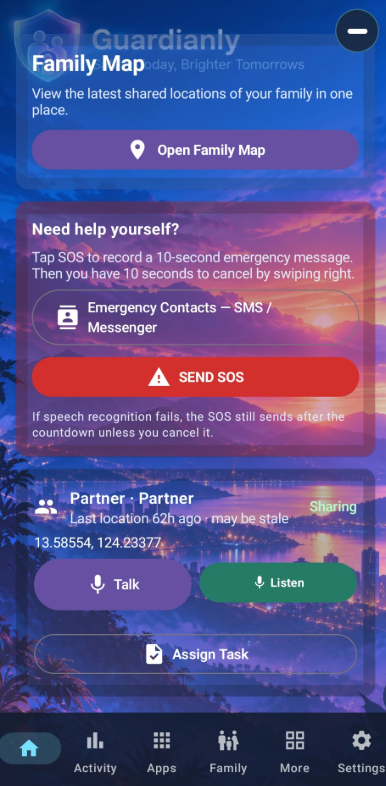
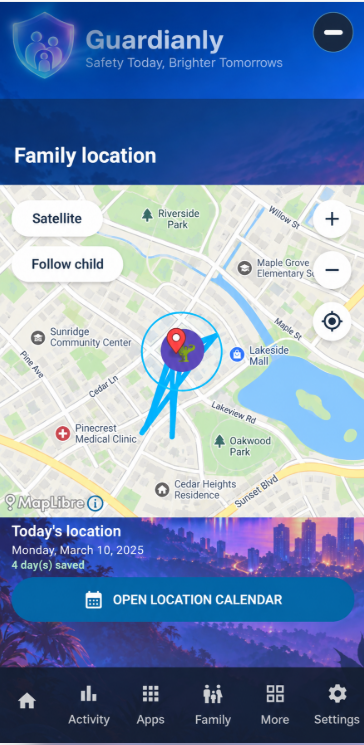
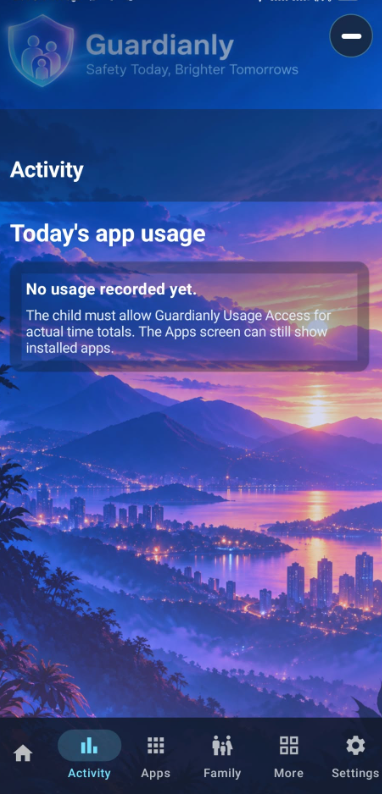
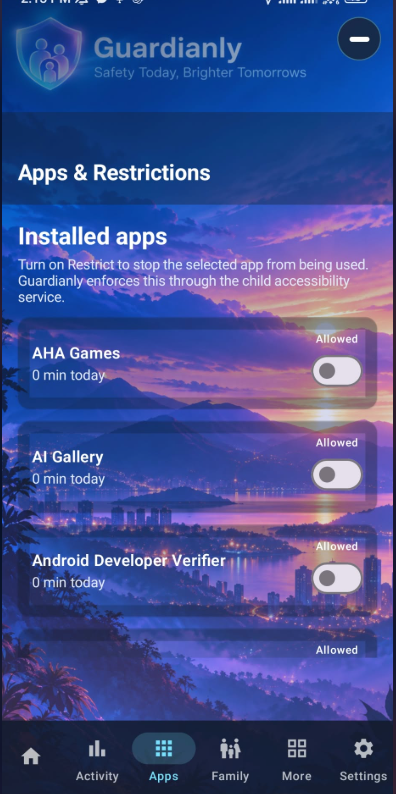
More from OllieVerse Apps
Useful apps for a smarter, more connected life.
We're here to help.
Have a question about Guardianly, installation, pairing or one of our other apps? Send OllieVerse Apps a direct message on Facebook Messenger and we'll get back to you.
f Message OllieVerse Apps on Messenger ↗Guardianly Support
For app support, include your device model, Android version and a short description of the issue so we can help faster.
Guides, answers and troubleshooting
Choose a topic below for practical steps. Screens and menu names may vary by Android version and phone manufacturer.
01Install GuardianlyDownload and set up the Android app+
- Download the APK using the official Guardianly download button on this website.
- Open the downloaded file from your browser or Downloads folder.
- If Android asks for permission to install apps from that source, review the prompt and allow it only for the browser or file manager you used and only if you trust the file.
- Finish installation, open Guardianly, and follow the in-app setup instructions for your account and family role.
- Repeat on the other family device if your setup requires a parent and child device.
Stay safe: Install only an APK downloaded from the official Guardianly website. Never install a file sent by an unknown person or a third-party download site.
02Google Play Protect blocks installationTemporarily adjust the setting, then turn protection back on+
If you downloaded Guardianly directly from the official OllieVerse website, use the steps below if Play Protect prevents installation. Android menu names may vary slightly by phone and Play Store version.
- Open the Google Play Store app on your Android phone.
- Tap your profile picture in the upper-right corner.
- Tap Play Protect, then tap the Settings gear.
- Temporarily switch off Scan apps with Play Protect only if you have verified that the APK is the current file downloaded directly from the official Guardianly page.
- Return to your downloaded Guardianly APK and complete installation.
- Immediately return to Play Protect settings and turn “Scan apps with Play Protect” back ON. Confirm the switch is enabled after installation.
Important: Download Guardianly only from ollieverse.borja.com.ph/guardianly. A website address alone cannot guarantee that every file is safe, so check that you have the expected APK and version. If Play Protect explicitly identifies the app as harmful or Android displays a high-risk warning, stop and contact Guardianly Support instead of bypassing that specific warning. Re-enable Play Protect immediately after installation.
03Sign in or create an accountEmail, Google and Facebook sign-in+
- Open Guardianly and choose the sign-in option you used for your account, or create an account if you are new.
- For Google or Facebook sign-in, complete the provider's sign-in screen and return to Guardianly.
- Review and accept the Privacy Policy consent when prompted.
- Follow the app's family setup and pairing instructions. Use the same original sign-in method associated with an existing account.
If sign-in fails, check your internet connection, update the app from the official website, and note the exact error message. If you previously used a different sign-in method with the same email, try that original method rather than creating duplicate accounts.
04Permissions and background activityWhat to enable and why+
Open Guardianly's Settings and look for Permissions & Background Activity. Review each status and use its action button to open the relevant Android settings. After making changes, return to Guardianly and tap Refresh Permission Status.
- Notifications: lets supported alerts appear on the device.
- Location: allows supported map and location features to access device location.
- Background location: may be needed for supported location updates while the app is not open.
- Microphone: required for supported voice and push-to-talk features.
- Accessibility access: required only for supported features that use Guardianly's accessibility service, such as certain app controls.
- App usage access: lets supported activity features read app-usage information.
- Battery unrestricted: can reduce battery optimization interruptions, but does not guarantee uninterrupted background operation.
- Autostart / background launch: some manufacturers provide additional controls; the location and availability of this setting varies by phone.
Important: Android requires users to approve sensitive permissions themselves. Enable only the permissions needed for the features you intend to use. Android, battery saver, manufacturer settings, network conditions, or force-stopping the app may still interrupt background work.
05Features and family setupLocation, app controls, chat and safety tools+
Guardianly's available features depend on your account role, device, Android version, and granted permissions.
- Family and pairing: follow the in-app steps to connect the appropriate family devices and verify each member's role.
- Location and history: enable the required location permissions and check that the device has location services and internet access.
- App activity and restrictions: review the required usage and accessibility access, then configure supported controls from the parent view.
- Chat and push-to-talk: check internet connectivity, microphone permission, and notifications on the relevant devices.
- SOS and alerts: allow notifications and review the relevant in-app settings. Do not rely on the app as the sole method of contacting emergency services.
If a feature is missing or does not behave as expected, record the feature name, what you expected to happen, what actually happened, and the phone model and Android version.
06Common problemsMissing location, alerts, audio or account access+
- Location is missing or outdated: check Location is enabled, review Guardianly's location permission, confirm internet access, and check battery restrictions.
- Notifications do not arrive: check Android notification settings and the app's in-app alert settings.
- Push-to-talk has no sound: check microphone permission, device volume, internet connection, and that the receiving device is online.
- Background features stop: check battery optimization and any manufacturer-specific background or autostart controls. Android may still restrict activity.
- Sign-in or pairing fails: check connectivity, use the original account sign-in method, and report the exact error without sharing your password.
07Privacy and responsible useFamily information and sensitive permissions+
Explain Guardianly's monitoring features to family members in an age-appropriate, transparent way. Use sensitive permissions only for their stated purpose and follow applicable laws and consent requirements. Review the Guardianly Privacy Policy before using the app.
Never send passwords, one-time codes, private pairing codes, license secrets, or unnecessary location and family information when asking for help.
08Contact SupportWhat to include in a help request+
Message OllieVerse Apps on Facebook Messenger. Include the Guardianly app version, phone model, Android version, the feature involved, the exact error text, and the steps that led to the issue. Attach a screenshot if useful, after removing personal or sensitive information.
Contact Guardianly Support on Messenger ↗Support instructions may change as Android and Guardianly are updated. Menu names and feature availability can vary by device and app version.